Import Data Tables

Contents
This Multi Table functionality provides PLE users an ability to import data from an Excel file into PLE input tables. Existing data in input tables will be overwritten unless the input tables are locked.
Please note, that the Excel file to be imported must be suitable for PLE. This means:
•data for each table must be on separate worksheets,
•the worksheets must be named as table's ShortName, and
•data must start at the 3rd row of each sheet.
Therefore, it is recommended to use the empty Excel input file generated by PLE or Excel file created by Multi Table Export mode. This is to assure that a valid Excel file is used in this process.
There are three ways to call this Multi Table Import mode:
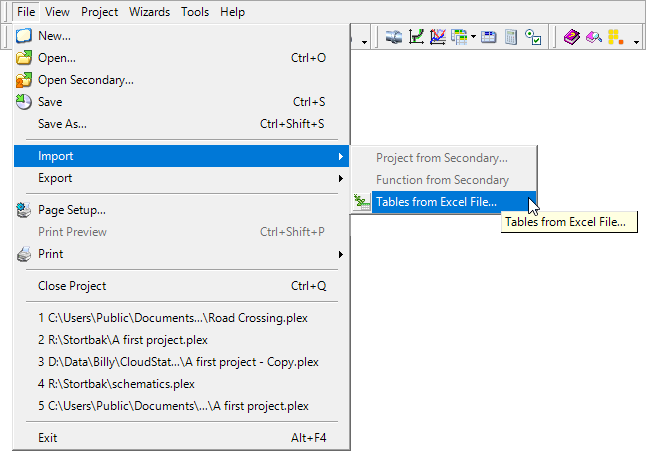
➢ Select from menu File > Import > Tables from Excel file...
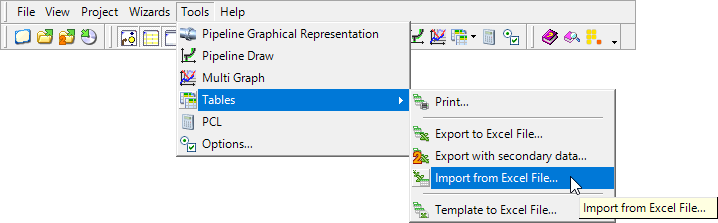
➢ Select from menu Tools > Tables > Import from Excel File...
or,
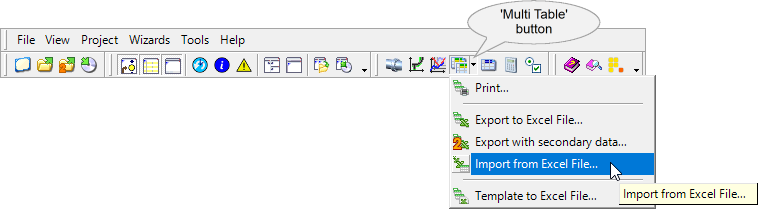
➢ Click on (the arrow next to) the 'Multi Table'  button and select
  'Import from Excel File...'
Dialog 'PLE: Import tables...' is shown. Select the Excel file, click on the Open button and the 'Multi Table: Import' screen will be appeared.
 Please note, when importing prescribed values (fixed values presented in a dropdown box in PLE) in 'shortname' format, these prescribed values must be in UPPERCASE.

A general working procedure about the tab Selection can be found in section Multi Table Selection. When a valid Excel input file has been selected and successfully processed, the tree in the first tab Selection is shown containing all input tables in the current PLE project that match to the worksheets found in the Excel file. By default, these input tables are selected (checked) and are located in their own design function. To facilitate the users selecting the input tables to be filled with data from the Excel worksheets, different input table icons are used to make distinction between empty and filled input tables in PLE:
Once again, the icons mentioned above represent the status of the input tables in the current active PLE project and not the status of the worksheets in the selected Excel file. Other PLE tables are hidden in this mode.
Select one or more tables to be filled with data from the worksheets or uncheck the checkbox next to the table name to skip the data import. Load Multi Table Definition A general working procedure about loading a definition can be found in Multi Table Definition. Regardless of the selected definition type, only the selected (input) tables setting on tab Selection will be loaded into the 'Multi Table: Import' dialog screen. Save the Current Multi Table Definition A general working procedure about saving a definition can be found in Multi Table Definition. Only one setting will be saved in the 'Multi Table: Import' definition, namely the selected (input) tables setting. |


Multiple_Tables_Import (last modified: Sep 21, 2025)