Importing Project Data

Contents
You can import project data into your current PLE project from an existing PLE project database (defined as secondary database), from a suitable Excel file or PCF file. If the secondary database is defined, you can choose whether to import the project data or to import data of a specific Design Function only.

Use this function to import selective or complete all data from a defined secondary database.
To import selective data from the secondary database: 1.Select from the main menu File > Import > Project from Secondary... 2.There are three groups of data that can be imported from the secondary database: i.Input tables from each Design Functions ii.Soil Model Wizard input data iii.Other data: •Multi Graph definitions •Import, export and print selections in Multi Table •Saved 3D Visualisation settings 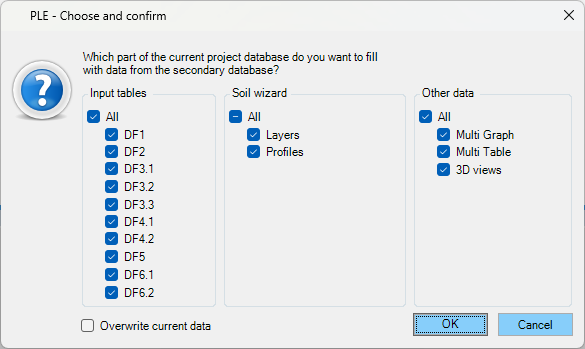 3.Click 'OK' to confirm and the followings actions will be performed: oNon-locked, empty input tables in the current project will be populated with data from the secondary database. oExisting (non-locked) input tables in the current project will not be overwritten with data from the secondary database. oFor DF1, only empty text field data will be populated with data from the secondary database if the option 'Overwrite current data' is not checked.
|

To import the complete database from the secondary database, use the clone database function via File > Import > Clone Secondary.
|

1.Select the Design Function from the Roadmap 2.Select from the main menu File > Import > Function X from Secondary, where X is the number of the current active Design Function 3.Click OK to confirm the action
|
Please see topic 'Import Data Tables'. |
Pipeline data of one or more PCF files can be imported in one go.
To import one single file: 1.Select from the main menu File > Import > Tables from PCF file ... 2.Select a PCF file (*.pcf) with configuration data and press Open.
To import multiple PCF files: 1.Select from the main menu File > Import > Tables from multiple PCF files ... 2.Select one or more PCF files (*.pcf) while pressing the Control (or Shift) button 3.Click on Open to start the importing process.
If multiple pipelines are defined in the selected PCF file(s), the user will be prompted to select pipelines to be imported. 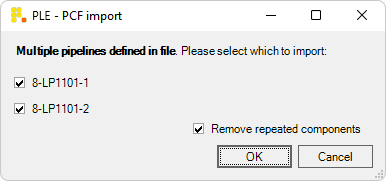 By default, a pipe component that has identical properties with one already imported will be removed. However, this process might not work correctly in all cases. In that case, uncheck the 'Remove repeated components' option.
|
Importing_Project_Data (last modified: Dec 9, 2025)