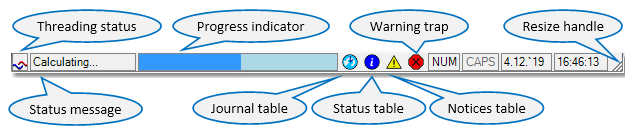
The Status bar at the bottom of the PLE main window is showing program status data and allows access to 'special tables' of a pipeline project.
Below is a screen capture of the Status bar. For information on a labelled feature, see the list underneath.
Threading status
|
Changes to  while the program is actually doing project calculations. while the program is actually doing project calculations.
|
Status messages
|
Informational messages about what is happening with the program.
|
Progress indicator
|
A graphical representation of the progress made in situations that take a longer period of time, such as starting up the program, closing it down of calculating a .
Increases while progress is made. With some design functions, the progress shown is based on iteration results and can actually decrease if the iteration process 'goes the wrong way'.
|
Keyboard Num Lock status
|
Shows the Num Lock status of the computer keyboard.
|
Keyboard Caps Lock status
|
Shows the Caps Lock status of the computer keyboard.
|
Date
|
Shows the current date.
|
Time
|
Shows the current time. The shows the how long the program has been active since it has been started.
|
|
Journal table
|
Clicking this icon will show the journal table of the current pipeline project in the Workspace panel. Is greyed out if no project is loaded.
|
Status table
|
Clicking this icon will show the status table of the current pipeline project in the Workspace panel. Is greyed out if no project is loaded.
|
Notices table
|
Clicking this icon will show the error/warning/message etc. table of the current pipeline project in the Workspace panel. Is greyed out if no project is loaded.
The icon colour gives some indication about the table contents:

|
Table is empty.
|

|
Table has messages in it.
|

|
Table has informational messages and maybe messages in it.
|

|
Table has warnings and maybe (informational) messages in it.
|

|
Table has severe warnings and may be warnings and (informational) messages in it.
|

|
Table has errors and maybe (severe) warnings or (informational) messages in it.
|

|
Table has debug messages in it.
|
 The shows the number of items in the table. The shows the number of items in the table.
|
Warning trap
|
Allows the user to select at which level of notices the program will stop and ask the user to confirm he read the notice before continuing. Is greyed out if no project is loaded. Stopping only occurs while are processed.
Clicking the icon will cycle it through the following sequence:

|
Don't stop and ask for user confirmation, continue as far as possible (calculation still stops after errors).
|

|
Stop on errors but do not ask for user confirmation on warnings or informational messages
|

|
Stop on errors and (severe) warnings but do not ask for user confirmation on informational messages
|

|
Stop on all types of notices and ask for user confirmation
|
The tool tip shows a clear text description of the trap setting.
|
|
Resize handle
|
Use to resize the main window in width and height simultaneously.
Invisible if the main window is maximised.
|
|
Statusbar (last modified: Nov 5, 2025)
See also:
Main Screen